

Owning a computer opens up a whole world of possibilities. But in this world a lot of people don’t know about time savers and conveniences that us seasoned Mac Users (40 year in my case) have found on our journeys throughout the internet. There are a lot of articles about what to install first, I myself wrote one over a decade ago, and many recommendations were already in that, but it was sorely in need of an update. What follows are true gems of GUI enhancement, and customizations you can install on your macOS machine, be it a Mac Mini, a MacBook Pro or Air, and even Mac Studios and Power Macs. The first few will be in order of installation because of what they do for your system cleanliness and orderliness. So without further ado, Install these and make your mousing around more powerful and faster than you can imagine.
1: Hazel
https://www.noodlesoft.com/ $42. GUI enhancement
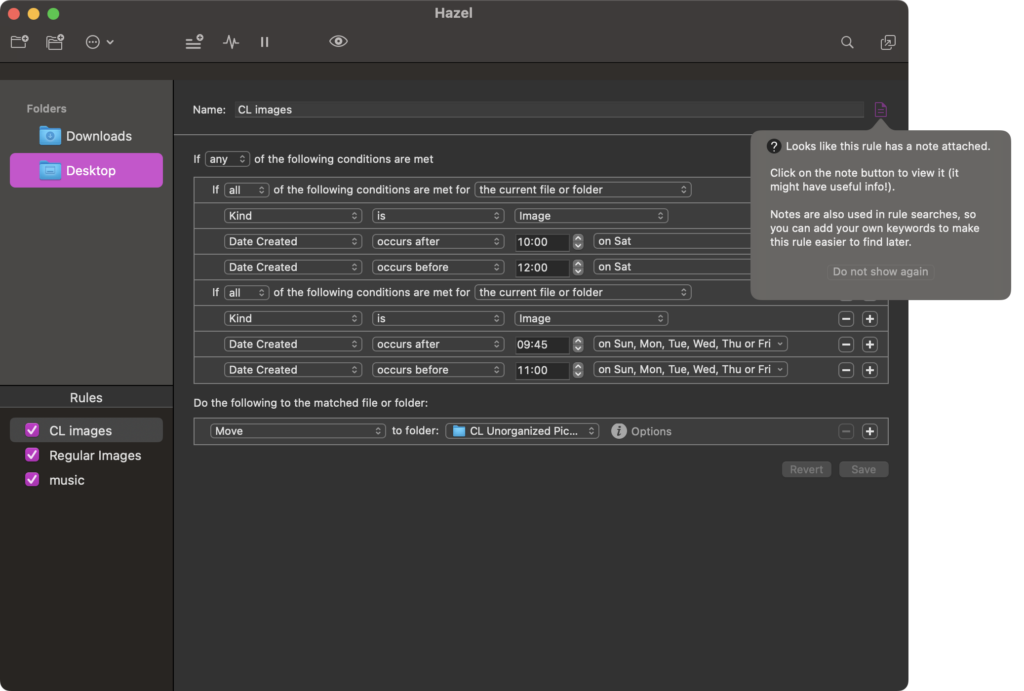
Hazel is a great app that can keep your desktop free of clutter. You simply open in up and configure it. Above you can see my simple configuration for filing screen shots taken between the hours of 9:45 and noon Sunday through Friday should be put in a different folder. It will automatically put images that would normally end up on the desktop in a folder I made called CL Unorganized Picture. You can do that to, just name it something more creative than me. 😉 What’s even better is that when you uninstall an app (trashing it), Hazel offers to remove that apps config and working files in your /Library/ and /Users/<username>/Library/ folders (“folder” meaning “directory,” but we’ll use Mac naming conventions.) So, if you install something early on that you find that you later don’t want, Hazel can make it so it was as if that app was never installed on your system. These 2 features make this app worth the $42 it currently is.
2: Default Folder X
https://www.stclairsoft.com/DefaultFolderX/index.html $40 Time Saver, GUI Enhancement
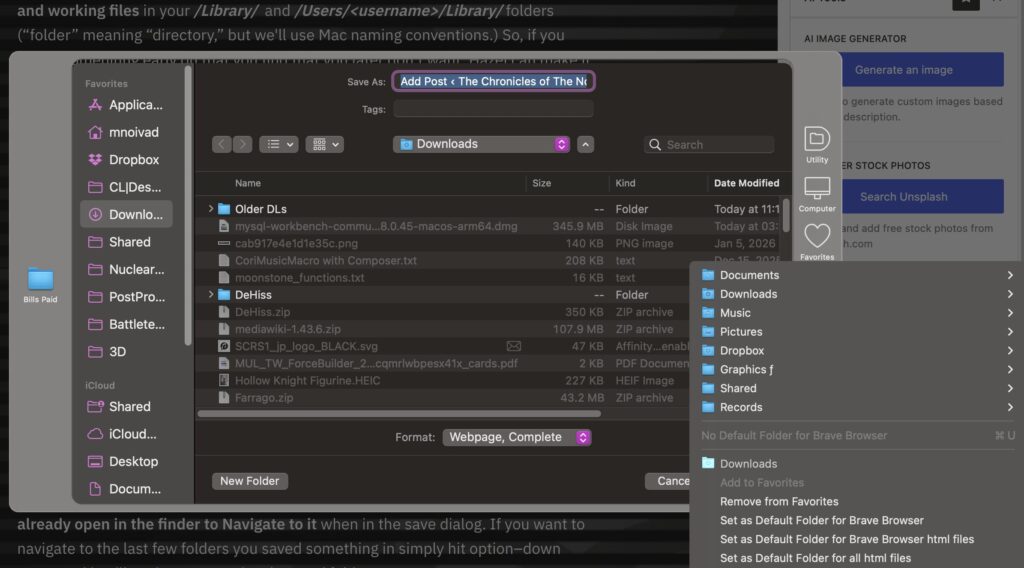
Default folder does what a very old piece of software called boomerang did. It keeps a list of recent folders you’ve navigated to, and with a click you can go to that folder, no matter how deep it is buried in your folders. You can add favorites so you can navigate to them with a click. But its killer feature that you can click a window already open in the finder to Navigate to it when in the save dialog. If you want to navigate to the last few folders you saved something in simply hit option–down arrow and it will navigate to previously saved folders. This saves a lot of time! $40 is worth it considering you’ll save hours over the lifetime of this app. Also, it is regularly updated and works with a plethora of macOS versions.
3: Anti-Virus {MalwareBytes}
https://www.malwarebytes.com/ $60/year for 3 devices. or other reputable antivirus utility app. Security
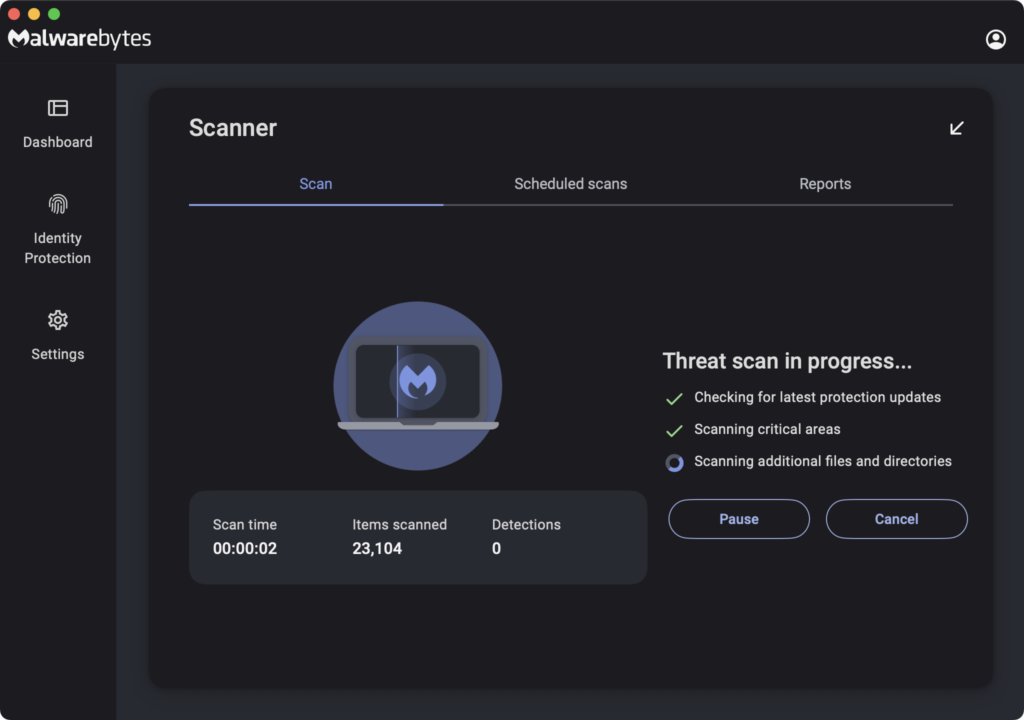
I don’t have any particular app for virus control, but current I use MalwareBytes. macOS is also vulnerable to viruses that spread with an innocent opening of an app or visit to a virus payload site. Some viruses don’t even require a click to install themselves. I’ll write another article about how to secure your Mac later, but for now, know that having AV software is a must these days. If you intercept even one virus that will make up how much it cost with how long you don’t have to reinstall your system, and grab backups. (You do have offline backups don’t you?)
4: 1Password
https://1password.com/ $36/year Security, Convenience
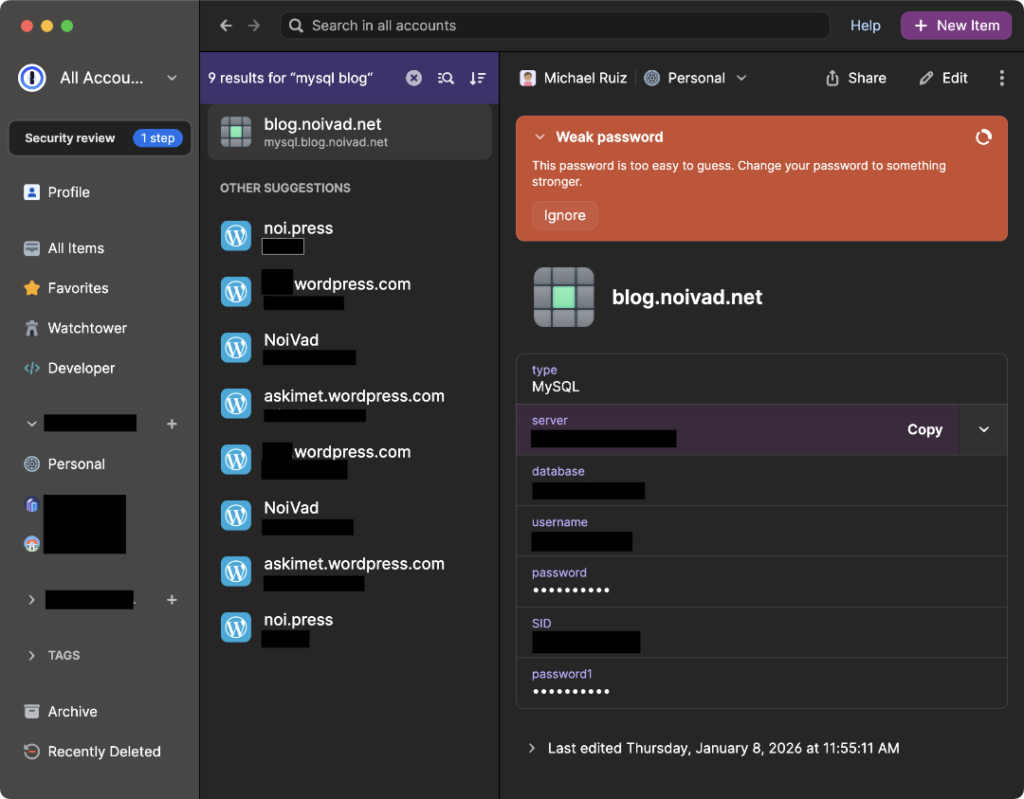
If you’re anything close to me, you have a bunch of accounts on various websites, a ton of software license keys, FTP and mySQL server credentials, secret notes to keep, etc. 1Password handles them all! If you’re a novice user, you might use the same password for various sites. I’ll tell you what any sys admin would tell you: “STOP RE-USING PASSWORDS IMMEDIATELY.” What 1Password does is it saves your passwords and will auto fill them with a command-\. That way your Netflix password can be anything — “NetFlix$ucks-LOLz-UniVerse#616” and 1P will save those passwords for you automatically with a dialog that pops up offering to save the password with a click.
Another feature is that 1Password will only fill out passwords on the site you have it saved to. That means 1password.com will only fill in credentials on the site you saved them from—not sites that are designed to look like the real site. So if you get a site you visit but 1Password doesn’t have a password you saved for it then it is probably a fake, virus laden site. navigate away from it, and type in the site you were looking for in duckduckgo.com or google, etc. The only downside to this is if you use a weak password for your 1Password account.* I can’t stress this enough: Make you 1P password something long and complex, and allow touchID so you can log in with a fingerprint. I have mine set to require me to enter my password every 30 days. Just make sure you only enter your master password in the app or on the 1password.com site.
*As an aside, I encourage you to make your email passwords long—like 4 words with numbers and symbols. “B0b_Dobbs-Rulez-tha-*nternet” would be a good one: 5 words, not easy to guess, and too long for password crackers to get it.
Any Order Installs
Bartender
https://www.macbartender.com/ $20 Tidyness, GUI enhancement

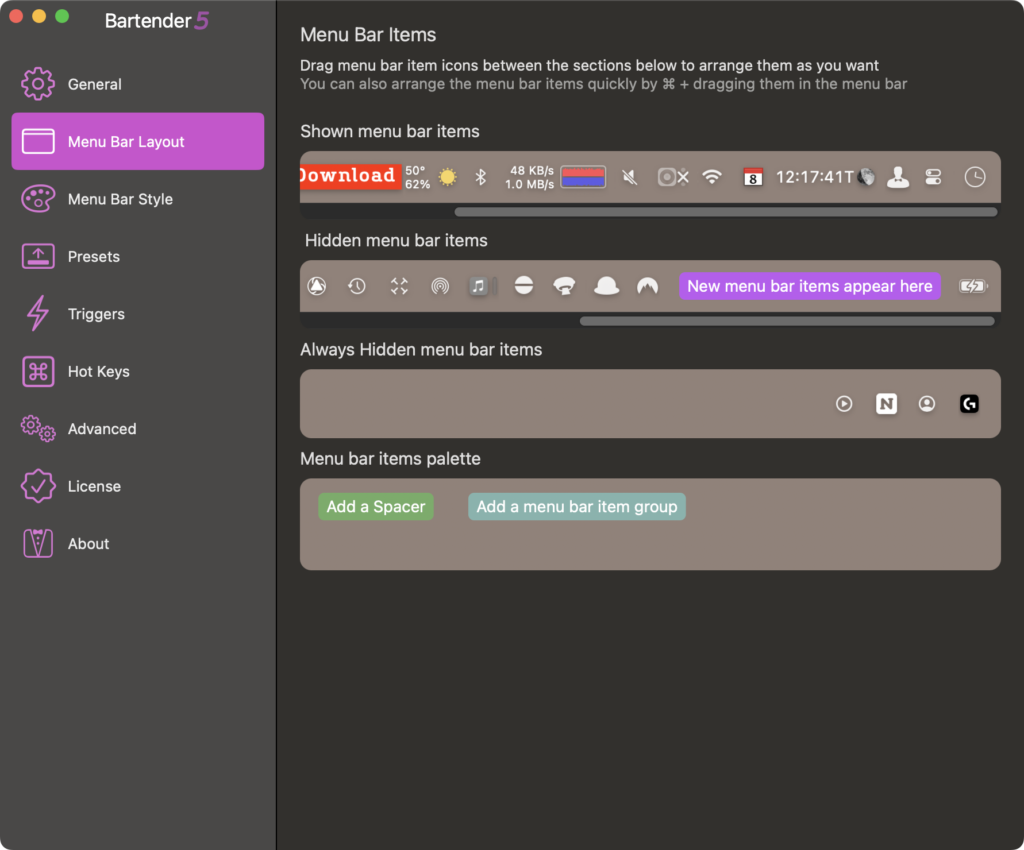
Bartender does one thing and does it very well. It allows you to “hide” unwanted or low priority menu bar items in a sub-menu bar. Configuration is easy: you simply drag items you want to hide from the Shown menu bar items to the Hidden menu bar items or the Always Hidden menu bar items. For $20 it is well worth it to take control of what shows up on your menu bar.
Alfred
https://www.alfredapp.com/ free, £34 for the A5 powerpack. Time Saver, GUI Enhancement
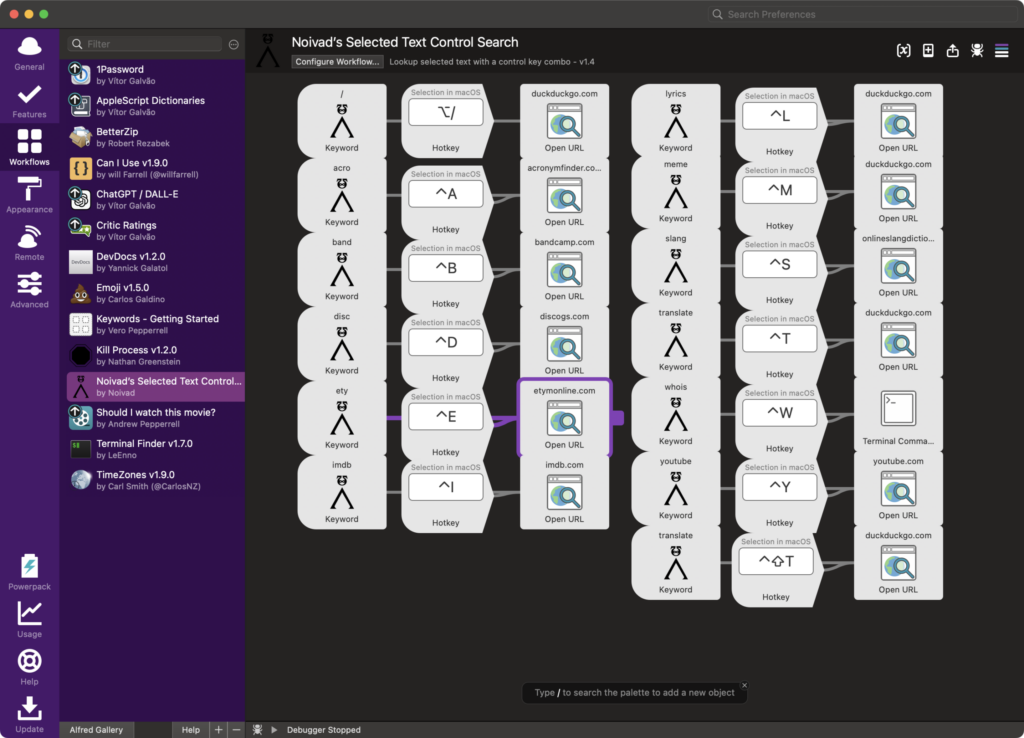
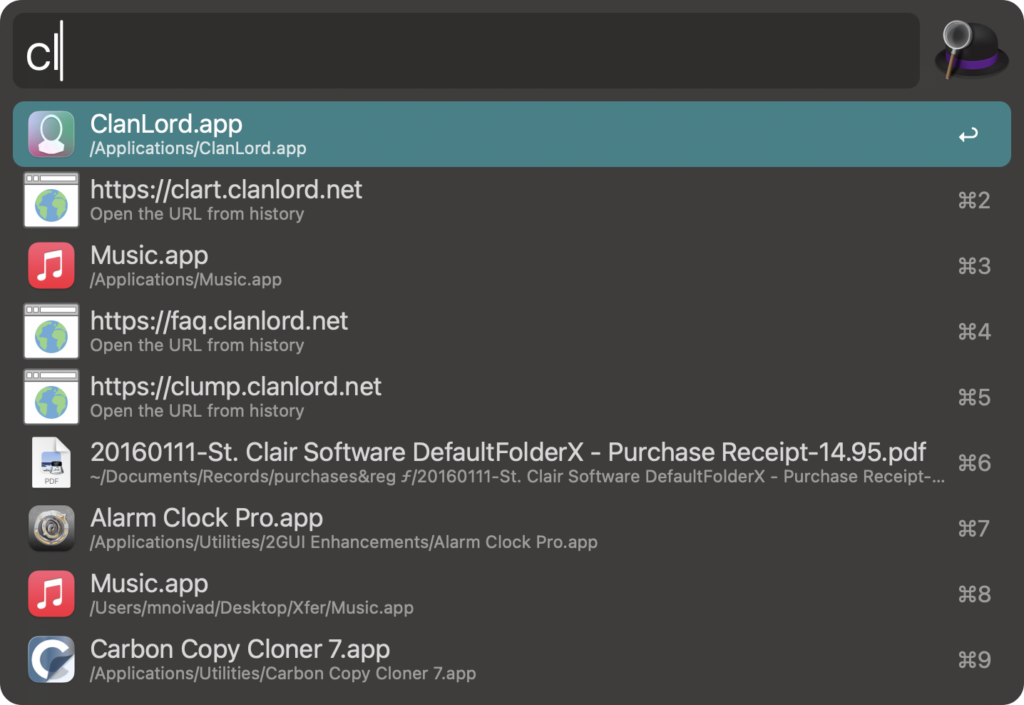
Alfred can take your default command-space search bar from weak to powerrful. Not only does it do what the commend-space feature of macOS does, but it can do a lot more. And when I say a lot, I mean hundreds if not thousands of things. You can do a duckduckgo.com or Google search in that bar, navigate to particular website (and Alfred save it for next time you start typing the site name), Trigger scripts you can write and make shortcuts to various settings and sites. I personally made one where I highlight a word, or words, and hit the option-/ and it does a web search for whatever I highlighted. Also, I made shortcuts to a lot of sites I use with an control-{alphabet character}. So, control-D does a discogs lookup. control-L searches for lyrics, control-M looks searches for the meme, control-Y searches YouTube, etc. (*See image above you full list.) This workflow alone has saved countless hours I would have spent 1:highlighting text, 2:copying it, 3:navigating to a search engine—duckduckgo.com is my fav— 4:pasting the text and then 5: selecting which website come up. That’s going from 5 steps to 2 steps. Alfred alone has saved hours of navigating to websites, files, and terminal actions.
PopChar
https://ergonis.com/popchar/download; $20 GUI Enhancement, Time Saver
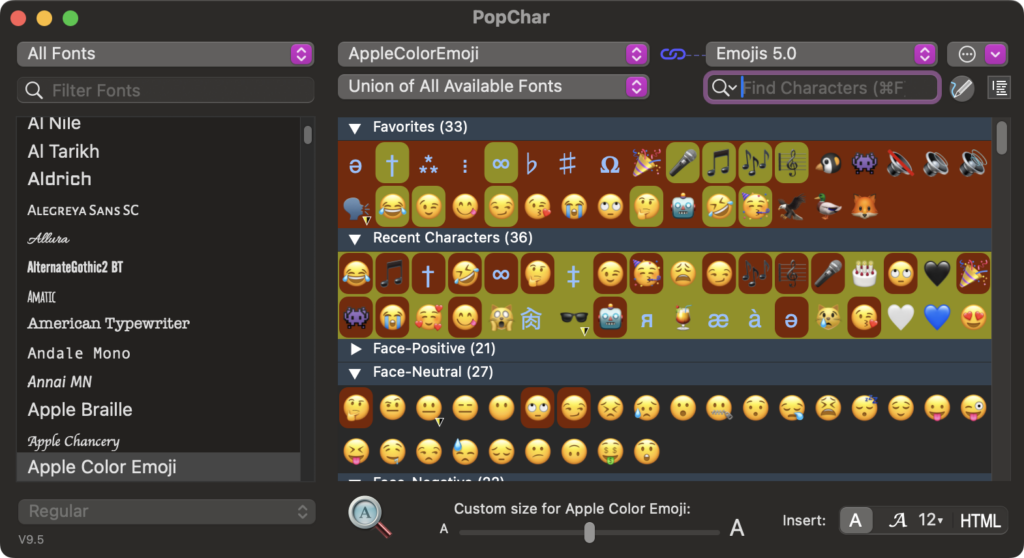

PopChar puts a tint “P” in the corner of your menu bar that allows users to find special characters, symbols, and emojis of the global character set or a particular font. you simply type the name of the character into the search field and click on it to insert it wherever your text insertion is. It can also save favorite characters (usually emojis) and show frequently used characters/emojis a the top of the list.
Fantastical
https://flexibits.com/fantastical free, $60/year for advanced features GUI Enhncement, Time Management, Time Saver
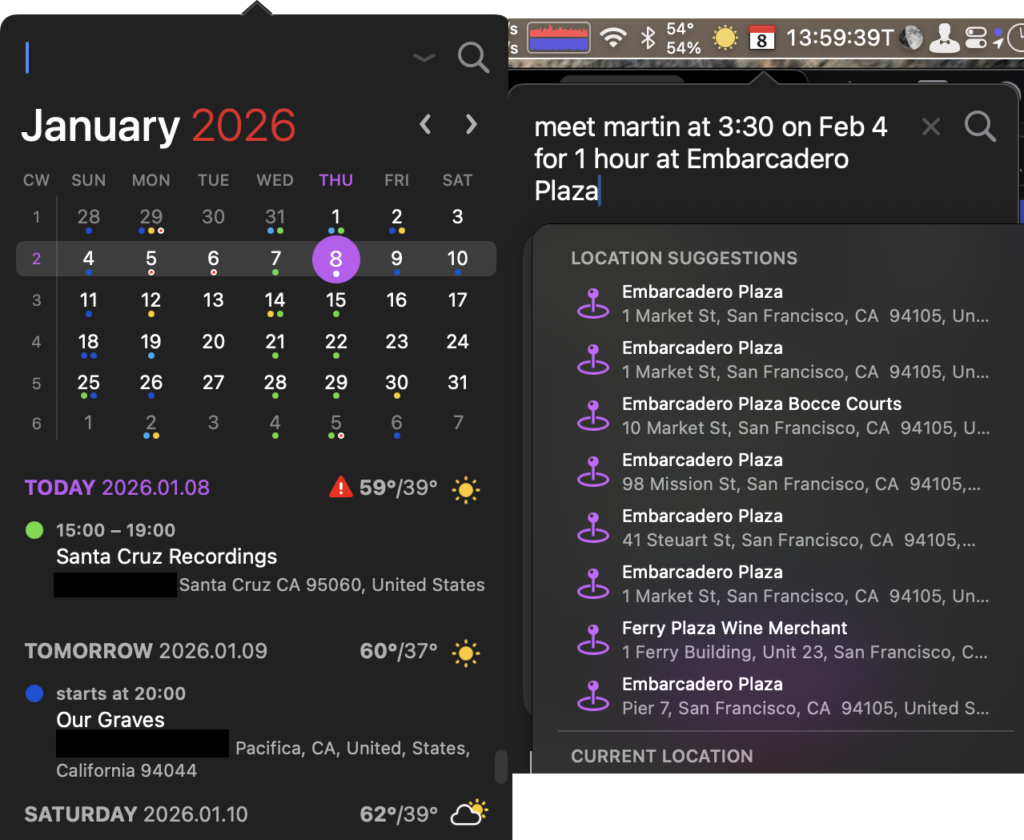
There are a of of calendar management programs in addition to the built in calendar that’s part of macOS, but this one takes the cake because you can use plain text to make appointments/reminders. “Meet Martin at 3:30pm to 5 at Embarcadero Plaza” and Fantastical translates into an appointment with a popover you can select the location, and that allows you to set a “Time To Leave” reminder that is independent of other notifications. On iOS can take text in the clipboard and make that into an appointment. It supports all calendar types: google calendar, CalDav, etc.
iStat Menus
https://bjango.com/mac/istatmenus $12; $15 5 licenses GUI Enhancement
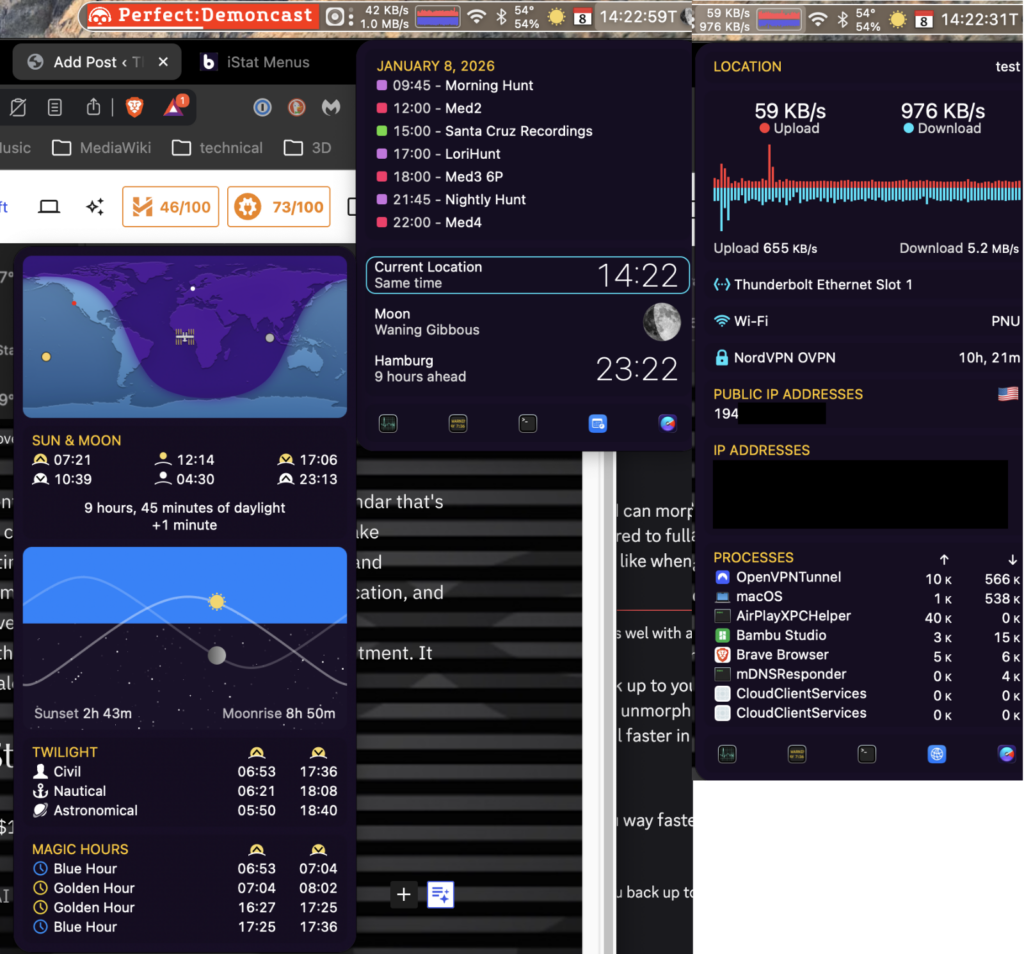
There are other menubar information apps out there (some free), but iStat Menus takes the cake and the kitchen aid mixer that made it in terms of information it can display and customizability. You can show various info about your system: CPU, Memory, Disks, Network, Fans & Temperatures, Power, and Time. And this info is in depth: It can show you how hot your CPU, Battery, WiFi Palm Rest, SSD, and more is running. Each section of the app shows more information than you’ll probably need. Need your IP address? It’s under the network menu. You’re in California and need to know what time is it in Germany to make sure your friend isn’t sleeping? The Time menu’s got you. I always show my CPU and Network graphs because you can tell in an instant if your network is down or you can tell whether your CPU functioning as normal or if it is churning through something that takes time to process. Time and weather* are bonuses. Sure there’s weather apps out there, but none fit snuggly in your menu bar with a pulldown menu to see things in detail with a single click.
*With a weather report upgrade ($7/year for 15 minute updates or $3/year for 60 minute updates) you can display the temperature and humidity outside.
SoundSource
https://rogueamoeba.com/soundsource $49 Audio Enhancement
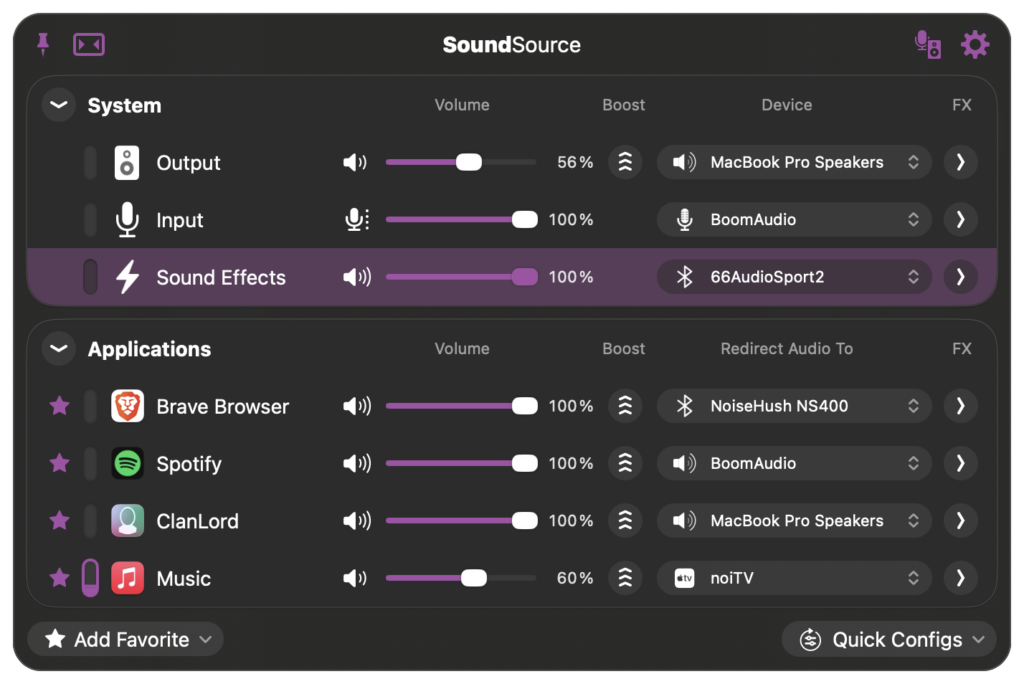
This is an app done the Macintosh way. It should be part of macOS it’s so good. This app allows you to route audio from any app to any connected device from your menubar. But wait: there’s more! SoundSource can also equalize audio with a 10 band EQ. It can make a distinct headphone EQ so you don’t have to monkey with the EQ each time you change outputs from speakers to headphones. It can also balance or pan audio, and even boost volume for weak incoming signals. That’s it: That’s all it does. And that’s enough to warrant the almost $50 price tag to some if not most people. Rogue Amoeba also makes an excellent app called Audio Hijack ($70) that does even more, but is meant for power users. Also, it’s not as compact and fast to setup as a menubar app.
Carbon Copy Cloner
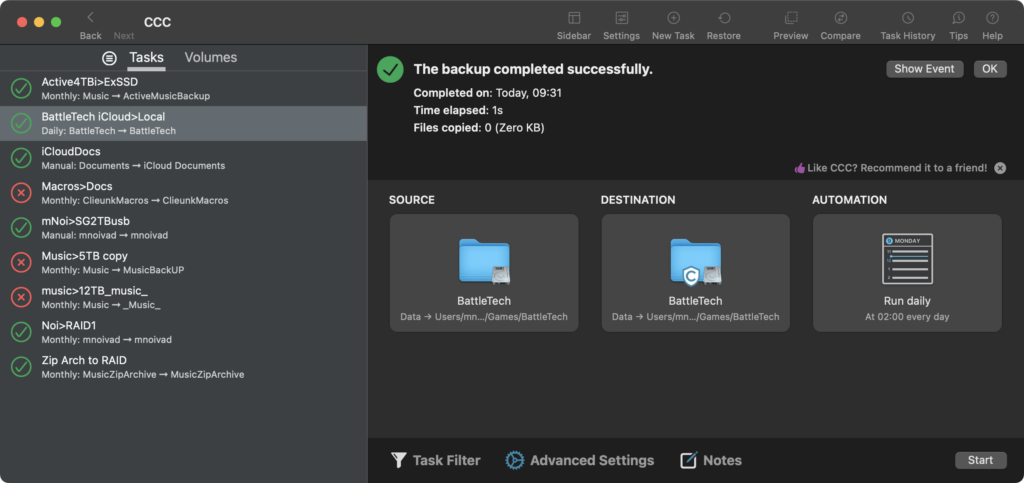
Above, I mentioned backups, and no article about must installs is complete without mentioning good backup apps. Just imagine your Mac’s drive failing. What would you lose? precious pictures of friends, maybe deceased people, your dissertation, a business plan, etc. For me personally, I prefer Carbon Copy Cloner, by bombich.
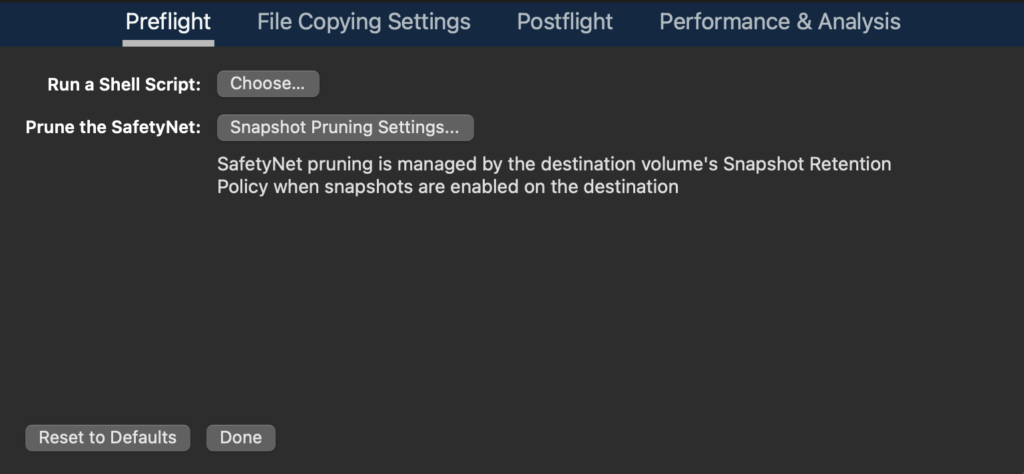
It packs a dizzying array of features—most shown in one convenient window—including scripts to run before and after tasks, scheduling, & a safety net where it keeps a copy of deleted items, in case you threw away a file in error, or that you didn’t know you needed. some of these are under advanced settings:
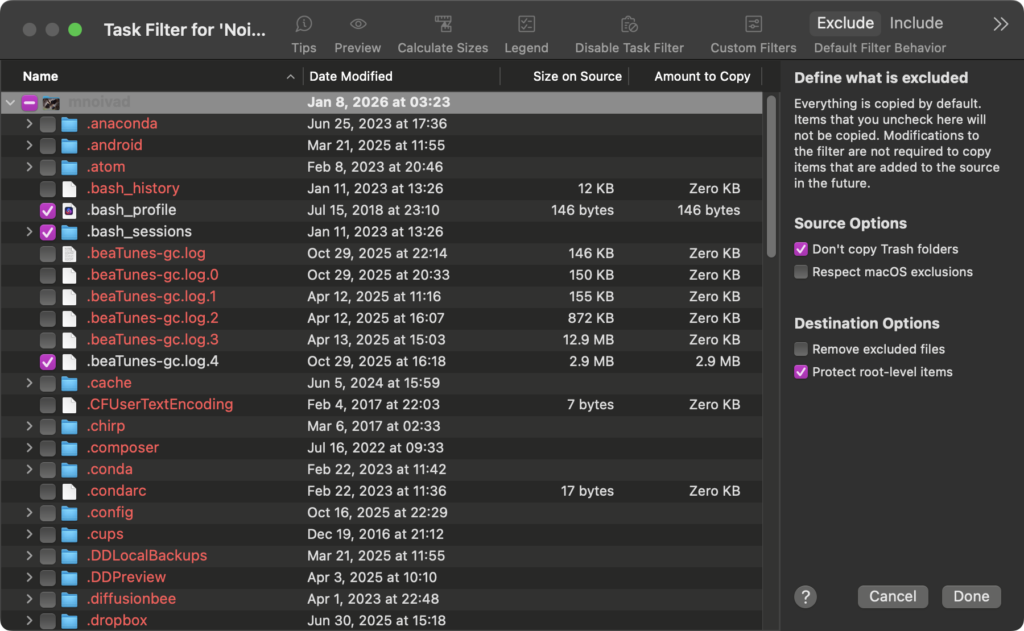
There is also a way—under Task Filter—to exclude things from backups, (like your iPhone local backups), from being copied over. Here it is in action:
CCC is well worth the price: just one drive failure or mistakenly deleted file makes the time and money to recover your files—if at all recoverable—make Carbon Copy Cloner a MUST HAVE. If you don’t have it yet. Stop reading, go buy it and set it up. This article can wait for you to come back to it.I cannot stress how much everyone needs a backup strategy.
Some might think: Well macOS has TimeMachine. But there’s a big failing of TM: it doesn’t backup files in anyway that would be recoverable by drag and drop, and navigating the interface to find backups is less intuitive than just grabbing the file from the backup or safety net. Actually, you should also run TimeMachine on your Mac too. And make sure to put each backup on separate disks. That reminds me, in CCC you can also select a local backup copy if you have folders that must be duplicated—like dropbox files you want to make sure don’t get deleted, or if you use the same app with content you can’t reach via Java. If one Failed drive loses your family pictures, or important work documents CCC pays for itself.
And That’s it. All other enhancement and are “nice to haves.” These are gems of macOS, this includes apps like:
Onyx—a deeper, & hidden feature system and App settings ( https://titanium-software.fr/en/onyx.html ),
Moom—Window Taming ( https://manytricks.com/moom/ ) ,
Alarm Clock Pro ( https://www.koingosw.com/products/alarmclockpro/ ),
SpoticaMenu—Current playing iTunes in menu bar ( https://spoti.ca/ ),
NetNewsWire—an RSS reader( https://netnewswire.com/ ),
A Better Finder Rename—bulk remaning on steroids ( https://www.publicspace.net/ABetterFinderRename/index.html ),
Forklift—Intuitive FTP Client ( https://binarynights.com/ ),
Pacifist—MacOS bundle file/app Retriever ( https://www.charlessoft.com/ )
Affinity Designer, and Photo—advanced Adobe Illustror, Photoshop competitors ( https://www.affinity.studio/graphic-design-software )
Nova—elegant and feature packed text editor ( https://nova.app/ )
Capto—Screen recording with a simple editor ( https://www.globaldelight.com/capto/ )
VLC—All types of music and video files player ( https://www.videolan.org/vlc/download-macosx.html )
XML Edita—XML Editor with this you edit preference files ( https://www.coxone.com/xmledita/index.html )
Swinsian—alternative to Apple Music ( https://swinsian.com/ )
TuneTag—simple to use audio file metadata editor ( https://tunetag.sweetpproductions.com/ )
Games
These are the only 3 games I play anymore
Clan Lord—ancient MMO RPG, no Subscription fee. ( https://clump.clanlord.net/library/index.php?title=Links & https://deltatao.com/clanlord/index.html )
BattleTech—turnbased tactical game with people piloting giant walking tanks {Mechs} ( https://store.steampowered.com/app/637090/BATTLETECH/ )
Hollow Knight—platform explorer RPG ( https://www.hollowknight.com/ )
Summary
These are my first installs, with a nod to great bonus apps which entirely depend on your needs. Most, if not all of these apps have trial versions you can download and install to get either time-limited or advanced features disabled. Being a Noivad, I revise this list every once in a while—usually when something is EoL or a new shiny is found. Stay tuned for blog posts about the best budget app alternatives to subscription apps. (I’m looking at you Adobe.)
I’d really appreciate if some of you would check out Clan Lord account ($15 account, $10 extra character slots). It is in serious need of more players. It’s updated monthly still, and there’s no rank cap.
Leave a Reply